Repeat Pattern Template in Affinity Designer
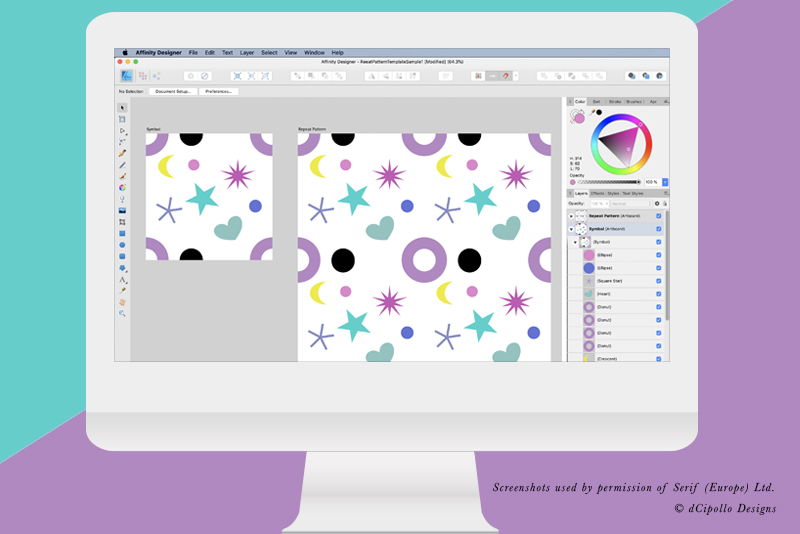
It's easy to create a repeat pattern in Affinity Designer, especially if you create your own template. Once your template is complete, you can use it to create and test any number of repeat patterns. This template will use the Symbol feature in Affinity Designer to create the seamless repeat tile and the auto update feature for a live preview of the results.
We will have one Artboard set as the symbol/seamless tile and another larger Artboard set as the repeated pattern. Because our tile is a Symbol, we can see a live update for each change we make to the seamless tile Artboard.
The size of your artwork and the finished project, such as for print or web, will determine the size of your seamless tile for the repeat pattern. In this example, our tile will be 500 x 500 px and our repeat pattern preview will be 1000 tall x 1000 wide pixels. This will give us 2 symbol instances across and 2 instances vertically. You will use your choice of resolution, such as 72 DPI for web, 144 or 264 DPI for iPad or 300 DPI for print.
Screenshots used by permission of Serif (Europe) Ltd. This article is not endorsed by Serif Ltd.
We will have one Artboard set as the symbol/seamless tile and another larger Artboard set as the repeated pattern. Because our tile is a Symbol, we can see a live update for each change we make to the seamless tile Artboard.
The size of your artwork and the finished project, such as for print or web, will determine the size of your seamless tile for the repeat pattern. In this example, our tile will be 500 x 500 px and our repeat pattern preview will be 1000 tall x 1000 wide pixels. This will give us 2 symbol instances across and 2 instances vertically. You will use your choice of resolution, such as 72 DPI for web, 144 or 264 DPI for iPad or 300 DPI for print.
- Open Affinity Designer and start a new project (see screenshot). In the New Document window, set the following and keep the defaults for the rest of the options. Choose OK.
Type: Devices
Page Preset: iPad 9.7 " Retina
Document Unites: Points
Create Artboard: Checked
Transparent Backgound: Checked
Page Width: 500 pt
Page Height: 500 pt
You should have Artboard 1 in the center of your pasteboard. As our second Artboard will be much bigger, lets zoom out. - From the top menu, choose View - Zoom - Actual Size (see screenshot).
- With the Move tool (see screenshot), select and drag the Artboard 1 to the upper left corner of the workspace.
- In the Layers panel, double-click the layer name and change it from Artboard 1 to Symbol. You will see the name changed in the Layers panel and the Pasteboard (see screenshot).
- From the Tools panel, choose the Artboard tool. Drag on the Pasteboard to create a new Artboard.
- With the new Artboard selected in the Layers panel, go to the Transform panel and set the Width to 1000 and the Height 1000 pts. Set the X value to 600 pt and the Y value to 0. (see screenshot)
- In the Layers panel, rename this layer to Repeat Pattern (see screenshot).
- Select the Rectangle tool and drag a rectangle inside the Symbol Artboard.
- With the Rectangle still selected, set the Fill and Stroke to white in the Swatches panel.
- In the Transform panel, set the Width and Height to 500 pts. With Snapping turned on (see screenshot), center the rectangle over the Artboard.
- To open the Symbols panel, choose View - Studio - Symbols (see screenshot).
- In the Layers panel, select the Symbol Artboard layer. Return to the Symbols panel and choose Create.
- From the Symbols panel, drag the Symbol thumbnail onto the Repeat Pattern Artboard (see screenshot).
- With Snapping turned on, place the first Symbol at the top left corner of the Artboard.
- In the Layers panel, drag the new Symbol layer under the Repeat Pattern Artboard, to nest it (see screenshot).
- With the new Symbol layer still selected, go to the Transform panel. You should see that this symbol has a zero for both the X and Y locations (see screenshot).
Now we will make a larger Artboard that will show the live update for our repeat pattern.
Now, we will duplicate the Symbol to fill the Repeat Pattern Artboard. But first, let's add a white background to the Artboard (see screenshot).
Now we can see the rectangle.
Now, we can make this Artboard a Symbol, so that we can duplicate this Symbol several times to fill the larger Artboard.
You will see a new symbol added to the Symbols panel (see screenshot).
Now we will duplicate this symbol and place it into the Repeat Pattern Artboard.
Repeat these steps to fill the Repeat Pattern Artboard (see screenshot).
Screenshots used by permission of Serif (Europe) Ltd. This article is not endorsed by Serif Ltd.

Related Articles
Editor's Picks Articles
Top Ten Articles
Previous Features
Site Map
Content copyright © 2023 by Diane Cipollo. All rights reserved.
This content was written by Diane Cipollo. If you wish to use this content in any manner, you need written permission. Contact Diane Cipollo for details.