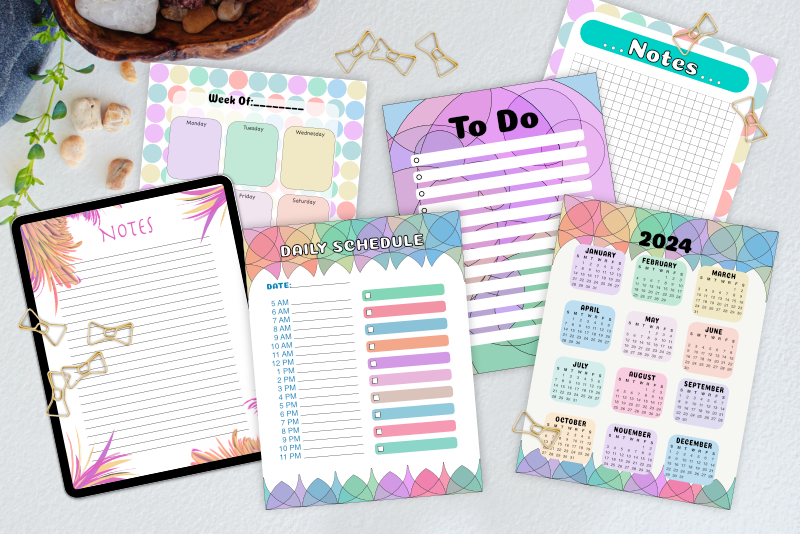
Full Digi Planner PDF Template - Front Cover

At this point in the Design a Digital Planner in Affinity Suite tutorial series, we have created the Digi Planner Cover PDF Template. As started in the introduction, we will be opening a copy of the template and creating our first master page for a more complete digital planner template (see screenshot). In this tutorial, you will learn the following.
Design a Digital Planner in Affinity Suite - Tutorial Series Index
More Affinity Suite Tutorials
Screenshots used by permission of Serif (Europe) Ltd. This article is not endorsed by Serif Ltd.
- Open a previously saved template
- Move design elements from a document page on to a master page
Let's Get Started
- Open Publisher and click File - New to open the New Document dialog. In the Templates window, select the Digi Planner Cover PDF thumbnail and click Create (see screenshot). You will get a new untitled copy of the template.
- Click File - Save As, name this new file Full Digi Planner PDF and save it in the default .afpub format.
- Click the Page 1 thumbnail in the Pages panel. You will see a blue border appear, indicating that Page 1 is active.
- Unlock all of the layers in the Layers panel. Select the top four layers, omitting the Master A layer. Right-click and choose Cut.
- Open the Master Pages panel and double-click the Master A thumbnail, to make that active. You will see that blue border around the thumbnail again and the Layers panel will be completely empty.
- From the Menubar, click Edit - Paste.
- In the Master Pages panel, double-click Master A to make it active (blue border will appear) and rename the master to Front Cover (see screenshot).
- Click File - Save.
You will have the following five layers in the Layers panel (see screenshot).
Left Side Binder Rings
Front Cover Placeholder - Place Image Here
Shadow 2
Shadow
Master A
You will see all of the objects on the selected layers disappear from the Canvas. The Layers panel and the Page 1 thumbnail in the Pages panel will be empty.
You will see the contents that we removed from Page 1 appear on the Master A thumbnail and on the Canvas. Because Page 1 has Master A applied by default, the contents will also reappear on the Page 1 thumbnail (see screenshot).
Note: Let's go back to the Pages panel for a second. Notice that when the Page 1 thumbnail is active in the Pages panel and we view the Layers panel, there is only one layer, the Master A layer. Although we don't see the four design layers, they are there. They have become sublayers of the Master A parent layer. You can see these layers by expanding the Master A layer (see screenshot).
Now that we have our design elements moved to Master A, let's rename this master to Front Cover.
Let's save our work so far in the Full Digi Planner PDF as a .afpub file.
Design a Digital Planner in Affinity Suite - Tutorial Series Index
More Affinity Suite Tutorials
Screenshots used by permission of Serif (Europe) Ltd. This article is not endorsed by Serif Ltd.
Powered by Creative Market

Related Articles
Editor's Picks Articles
Top Ten Articles
Previous Features
Site Map
Content copyright © 2023 by Diane Cipollo. All rights reserved.
This content was written by Diane Cipollo. If you wish to use this content in any manner, you need written permission. Contact Diane Cipollo for details.