

First Document with Craft Docs - Page Settings
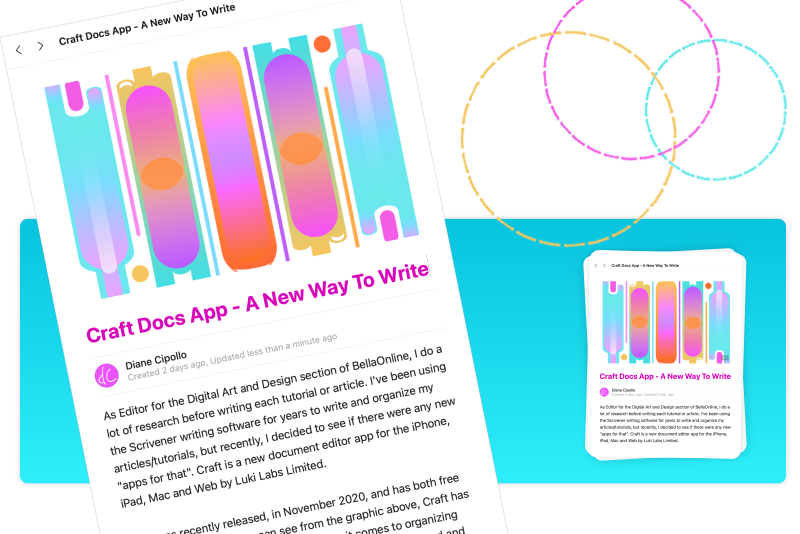
The best way to learn how to use a new app is to jump right in and get going. In this series, I will walk you through writing your first document using the Craft app.
Once you open Craft and set up to your account, you are ready to start your first document. On the screen (see screenshot), which is empty for now, you will see three icons in the top right. Click the left icon, to start a new document.
As you know, each article or tutorial on BellaOnline must have a featured image at the top, which Craft calls a Cover Image. This is one of my favorite features because it makes each Craft document stand out on its own (see screenshot). Let's take care of that task first.
Craft screenshots used by permission of Luki Labs Ltd.
Once you open Craft and set up to your account, you are ready to start your first document. On the screen (see screenshot), which is empty for now, you will see three icons in the top right. Click the left icon, to start a new document.
As you know, each article or tutorial on BellaOnline must have a featured image at the top, which Craft calls a Cover Image. This is one of my favorite features because it makes each Craft document stand out on its own (see screenshot). Let's take care of that task first.
- Select the Page Style icon in the top right to display the page style controls for our document (see screenshot).
- In the Header Settings section of the right panel, turn on all three toggle buttons to show the Cover Image, Title and Author.
- To add the Cover Image, you can drag the image from the Finder window or choose one of the options from the pop up menu (see screenshot). Notice in the menu that Craft has an option for importing images from Unsplash, which is a website for free CC0 licensed images.
- Click in that spot and type in the title for your document.
- Finally, you should see your account avatar and your name under the Page Title, as the Author of the document.
- Under the Author name is the top of the text area. Click in this area and add the first few sentences to your document.
- At the top of the right side panel (see screenshot) are the Default Font options. Select each option and watch the changes in the text. Set the Font option of your choice.
- Under the toggle buttons, you will find the Block Spacing options (see screenshot). Place your cursor over each button to read the explanation for each option. Select each button and watch how the text spacing changes. Set the option of your choice.
- Repeat the previous steps for the Page Width options (see screenshot).
Below the Cover Image is the "Page Title" gray placeholder text.
Your account avatar and your name are taken from the account information that you supplied when you started Craft for the first time. You can change this in the Preferences window by clicking your avatar to open the menu and then clicking Preferences (see screenshot).
Next, we can set the Font, Block Spacing and Page Width options for our document. But first we need to add some text.
INDEX - Craft Docs App - A New Way to Write
Craft screenshots used by permission of Luki Labs Ltd.

Related Articles
Editor's Picks Articles
Top Ten Articles
Previous Features
Site Map
Content copyright © 2023 by Diane Cipollo. All rights reserved.
This content was written by Diane Cipollo. If you wish to use this content in any manner, you need written permission. Contact Diane Cipollo for details.








