

Create an Online Course The Official Udemy Course
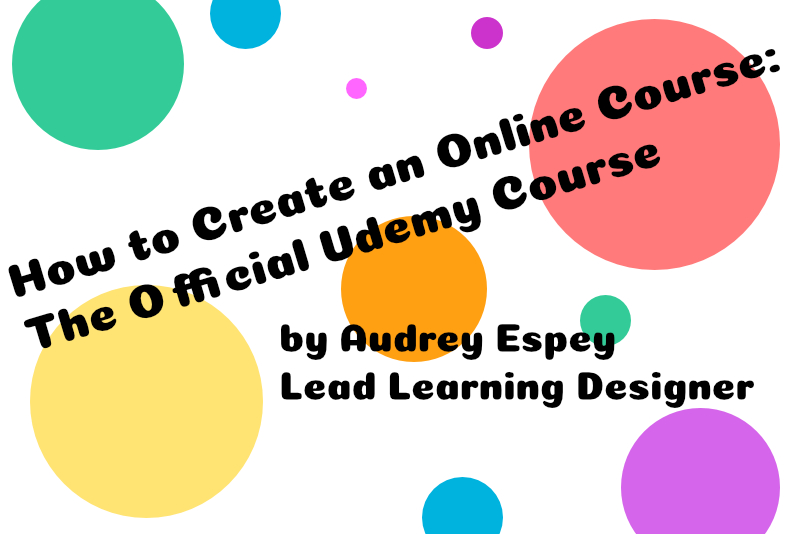
In this official course entitled How to Create an Online Course: The Official Udemy Course, Audrey Espey takes you step by step through the process of designing and creating a course with the Udemy online course builder. This course is good for those creating their first Udemy course or those wanting to update an existing course.
Espey begins with an overview of what you will learn in this course. She discusses the importance of identifying and knowing your learners when designing your course. Your potential learners will guide you when outlining your course and creating activities and assessments for your course. She also covers how to create your course content, landing page and launch your course.
Next, Espey discusses how to sign up as an instructor on Udemy and login to the online instructor dashboard and course builder. She also covers how to use the Marketplace Insights tool to research and refine your course topic. She instructs her learners to download and study the Picture Yourself Published PDF and set up a draft course on the instructor dashboard. Once you have set up your draft, you can download and complete the Identify Your Intended Learners PDF.
In the next section, Espey discusses the Bloom's Taxonomy and learning objectives in more detail. She discusses the various types of activities you can include with your course, including exercises, tutorials and worksheets. She also discusses both formative and summative ways to assess your learners. She instructs her leaners to download and complete the Write Your Course Learning Objectives PDF and the Creating Practice Activities on Udemy PDF.
Structure is the next topic that Espey discusses. After covering the details for an Udemy course, such as length and type of content to include, she instructs her learners to download and complete the Course Quality Checklist PDF and the Udemy Course Outline Template. Once you have finished your course outline, you are ready to create your course content.
Espey suggests a lot of planning before you begin recording your video. She suggests that stories and real world examples are very good to help learners retain your information. She also reinforces the need for accessibility of your content. After discussing the quality guidelines for your video, several instructors share their custom set up for video recording and editing. Espey includes several downloadable PDFs in this section.
Audio Video Tools
Prepare For Filming
Student Experience Checklist
Table Read Tips
Udemy Video Editing Template
Once your content is complete, Espey suggests creating and uploading a test video for evaluation, which is a nice feature that Udemy has for beginning instructors. She also discusses several resources that you might consider including.
Next, Espey takes her learners on a tour of the online course builder. She discusses how to upload your content and add the important SEO information for your course. She also discusses what is best to include on your course's landing page.
How to Create an Online Course: The Official Udemy Course by Audrey Espey
https://www.udemy.com/course/official-udemy-create-course/
Espey begins with an overview of what you will learn in this course. She discusses the importance of identifying and knowing your learners when designing your course. Your potential learners will guide you when outlining your course and creating activities and assessments for your course. She also covers how to create your course content, landing page and launch your course.
Next, Espey discusses how to sign up as an instructor on Udemy and login to the online instructor dashboard and course builder. She also covers how to use the Marketplace Insights tool to research and refine your course topic. She instructs her learners to download and study the Picture Yourself Published PDF and set up a draft course on the instructor dashboard. Once you have set up your draft, you can download and complete the Identify Your Intended Learners PDF.
In the next section, Espey discusses the Bloom's Taxonomy and learning objectives in more detail. She discusses the various types of activities you can include with your course, including exercises, tutorials and worksheets. She also discusses both formative and summative ways to assess your learners. She instructs her leaners to download and complete the Write Your Course Learning Objectives PDF and the Creating Practice Activities on Udemy PDF.
Structure is the next topic that Espey discusses. After covering the details for an Udemy course, such as length and type of content to include, she instructs her learners to download and complete the Course Quality Checklist PDF and the Udemy Course Outline Template. Once you have finished your course outline, you are ready to create your course content.
Espey suggests a lot of planning before you begin recording your video. She suggests that stories and real world examples are very good to help learners retain your information. She also reinforces the need for accessibility of your content. After discussing the quality guidelines for your video, several instructors share their custom set up for video recording and editing. Espey includes several downloadable PDFs in this section.
Audio Video Tools
Prepare For Filming
Student Experience Checklist
Table Read Tips
Udemy Video Editing Template
Once your content is complete, Espey suggests creating and uploading a test video for evaluation, which is a nice feature that Udemy has for beginning instructors. She also discusses several resources that you might consider including.
Next, Espey takes her learners on a tour of the online course builder. She discusses how to upload your content and add the important SEO information for your course. She also discusses what is best to include on your course's landing page.
How to Create an Online Course: The Official Udemy Course by Audrey Espey
https://www.udemy.com/course/official-udemy-create-course/

Related Articles
Editor's Picks Articles
Top Ten Articles
Previous Features
Site Map
Content copyright © 2023 by Diane Cipollo. All rights reserved.
This content was written by Diane Cipollo. If you wish to use this content in any manner, you need written permission. Contact Diane Cipollo for details.





