

Halloween Skull Coloring Page in Affinity Designer
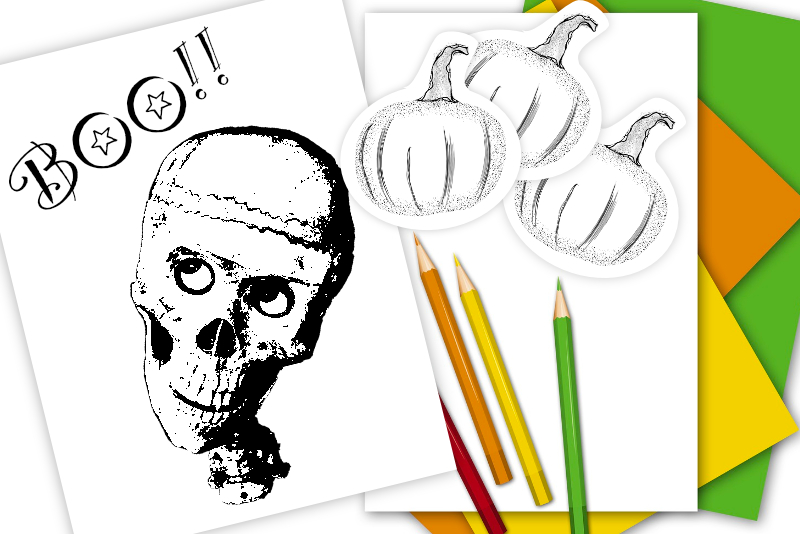
In this Affinity® Designer tutorial, we will create a black and white Halloween image. This image would be great for a coloring page or accent on a planner page. As the base for our project, we will use a royalty free image of a skull from Pixabay.com (see link below). We will use the Threshold Adjustment control to enhance the intricate lines and crevices of the skull. The result will be a black and white image of a Halloween skull.
Let's begin with an 8.5 x 11 inches paper size document at 300 dpi for printing. Although we are creating a printable project, this design can also be used as a digital project for a planner or journal. Besides being a good size for printing, the document size will gives us enough space above or below the skull for adding text to our project.
https://pixabay.com/photos/skull-halloween-people-mask-dummy-219794/
Party LET Font
https://freefonts.co/fonts/party-let-plain
Screenshots used by permission of Time Base Technology Limited.
Let's begin with an 8.5 x 11 inches paper size document at 300 dpi for printing. Although we are creating a printable project, this design can also be used as a digital project for a planner or journal. Besides being a good size for printing, the document size will gives us enough space above or below the skull for adding text to our project.
- Open Affinity Designer and set the Preset to the Print category. Click the Portrait icon and choose the 8.5 x 11 inch Letter preset.
- Click the Color tab and set the Color Format to RGB/8. Check the box for a Transparent Background. Click Create.
- Copy and paste the skull image in to the Canvas and resize the skull to fit within the Canvas.
- Name this layer to Skull in the Layers panel.
- With the image layer still active, open the Pixel Persona workspace by clicking the icon in the Persona toolbar at the top of the workspace.
- Select the Selection Brush tool. Keep the default settings and start selecting the surrounding black and empty areas around the skull.
- With the areas selected, right-click on the Skull layer in the Layers panel and choose Rasterize.
- Now, from the top Menu, click Edit - Delete to remove the selected area.
- Click Select - Deselect.
- If there is any area that you still wish to delete, use the Erase Brush tool.
- From the Persona toolbar, click the Designer Persona icon to go back to the Designer workspace.
- With the Skull layer selected, open the Adjustments menu at the bottom of the Layers panel and choose Threshold.
- Close the Threshold window.
- Draw a white background over the entire Canvas with the Rectangle tool.
- Name the new layer to BG and drag it below the Skull layer.
- Select the Artistic Text tool and add your text to the canvas.
You should immediately see the image turn in to a black and white image. The default setting of 50% is usually very good texturing but you can use the pop-up Threshold slider to adjust to your liking.
At this point, the skull is a black and white image on a transparent background. If you wish to use the image as a sticker, save it with the transparent background.
To use the image as a coloring page, we need to add a background layer.
Now we can add some spooky text above the skull. In the example, I have used the free Party LET font (see link below).
Save your project. To use the project as a coloring page, export it as a jpg or pdf document.
https://pixabay.com/photos/skull-halloween-people-mask-dummy-219794/
Party LET Font
https://freefonts.co/fonts/party-let-plain
Screenshots used by permission of Time Base Technology Limited.

Related Articles
Editor's Picks Articles
Top Ten Articles
Previous Features
Site Map
Content copyright © 2023 by Diane Cipollo. All rights reserved.
This content was written by Diane Cipollo. If you wish to use this content in any manner, you need written permission. Contact Diane Cipollo for details.





