How to Draw Xmas Ornaments in Illustrator
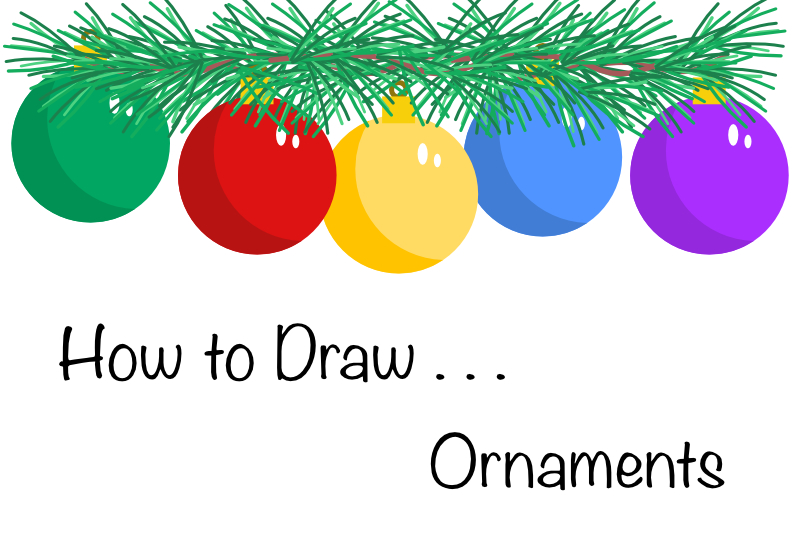
In this Illustrator® tutorial, we will make a Xmas ornament for your holiday projects. This is a great project for beginners to Illustrator and for learning how to use the Shape Builder tool in Illustrator.
Our first step is to draw a circle at the size you wish the ornament to be. Then we will add a shadow for dimension. We will duplicate the shape and use the Shape Builder tool to cut away the part of the circle that isn't the shadow. Finally, we will create an ornament cap and handle at the top of the ornament.
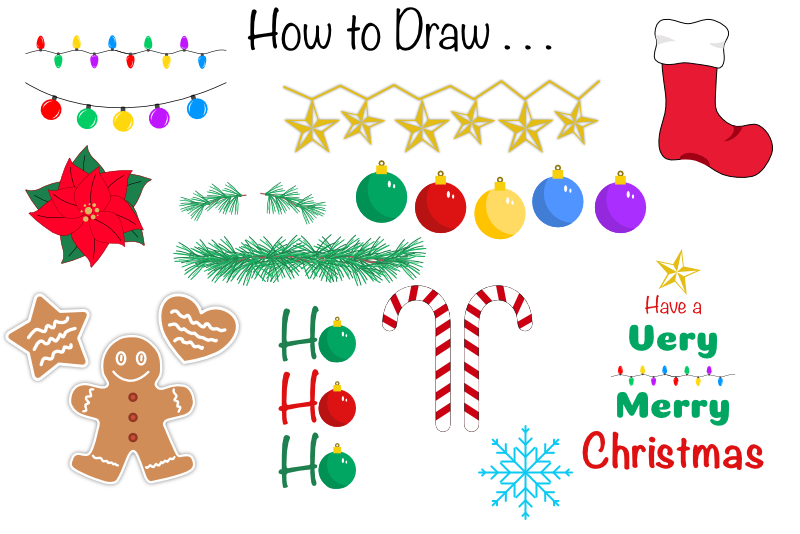
Index - How to Draw a Holiday Theme Collection of Elements
Copyright 2023 Adobe Systems Incorporated. All rights reserved. Adobe(R) product screen shots reprinted with permission from Adobe Systems Incorporated. Adobe Illustrator(R) is either a registered trademark or a trademark of Adobe Systems Incorporated in the United States and/or other countries.
Our first step is to draw a circle at the size you wish the ornament to be. Then we will add a shadow for dimension. We will duplicate the shape and use the Shape Builder tool to cut away the part of the circle that isn't the shadow. Finally, we will create an ornament cap and handle at the top of the ornament.
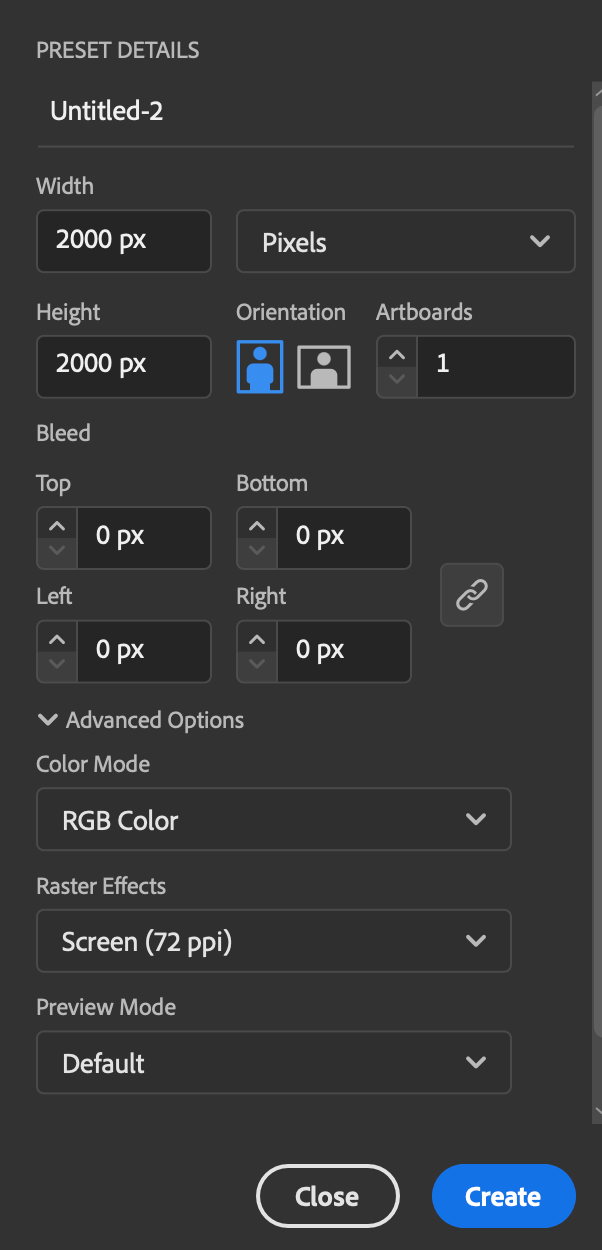
- Open Adobe Illustrator and set the document to 2000 x 2000 pixels (see screenshot).
- With the Ellipse tool, draw a circle on the Canvas. Hold down the Shift key to draw a circle.
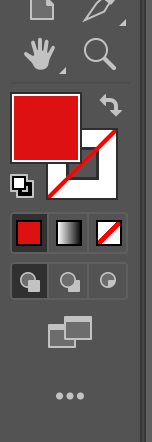
- With the circle selected, use the Fill and Stroke tools to set the color for your ornament. Set the Fill color to red or the color of your choice and set the Stroke to null. The color used in the example is DD1212 (see screenshot).
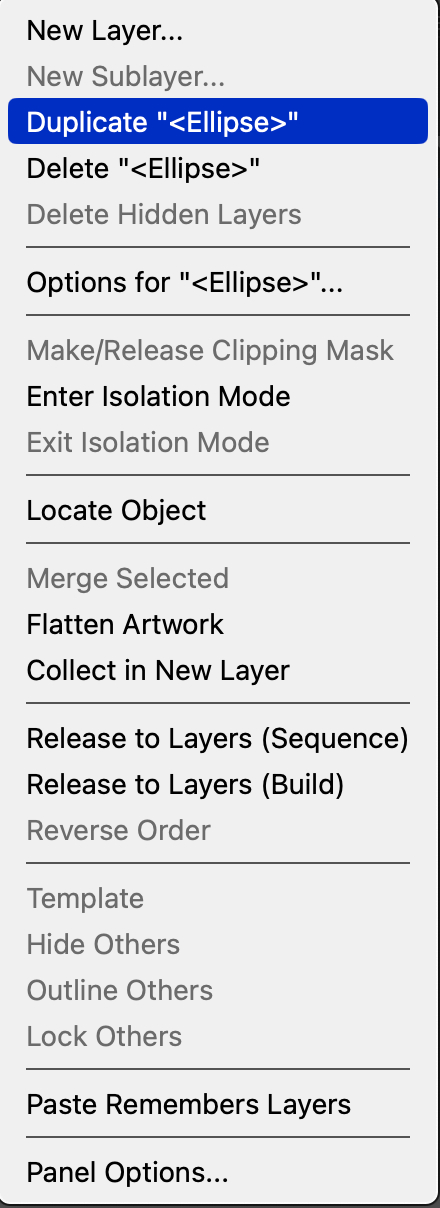
- In the Layers panel, open the pop-up menu and choose Duplicate Ellipse (see screenshot).
- Go back to the Fill tool and make this circle slightly darker in color, for the shadow color. The color used in the example is B71313.
- Set the Fill color for this third circle to a different color from the colors you are using for your ornament.
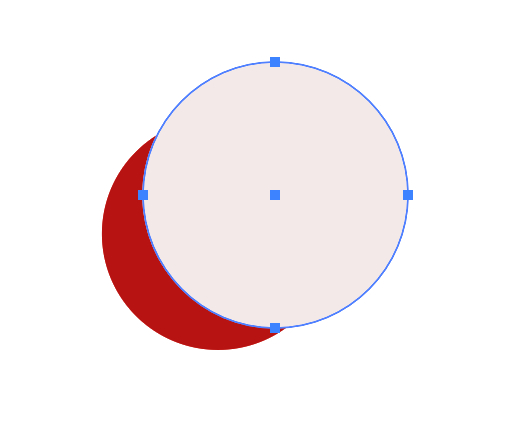
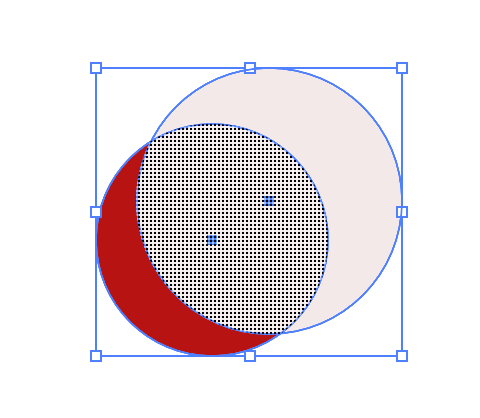
- With the Ellipse tool, draw a third circle over the top of the other two circles but cover only the part of the circle that you want to cut out from the shadow section of the circle (see screenshot).
- Select both the dark circle and the third circle. With those selected, select the Shape Builder tool.
- Move your cursor over the two shapes and click on the area that you wish to cut away (see screenshot).
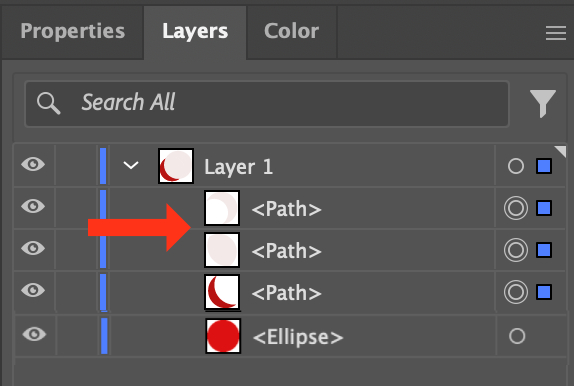
- In the Layers panel, delete the two layers containing the two parts of the third circle that you wish to cut away. This will give you the ornament circle and the cut out shadow shape layers (see screenshot).
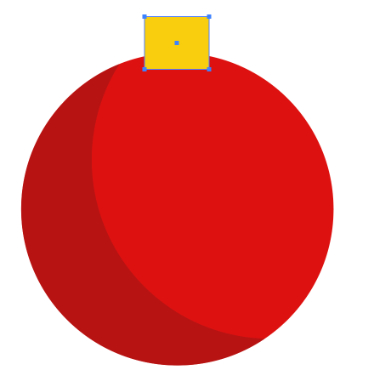
- Switch to the Rectangle tool. Set the Fill to a golden color (F7CF0B) and the Stroke to null.
- Draw a small rectangle shape at the top of the ornament (see screenshot).
- Switch to the Ellipse tool and set the Stroke to a slightly darker golden color (8E750D) and the Fill to null.
- Draw a small circle above the golden rectangle, which will be the handle for the ornament (see screenshot).
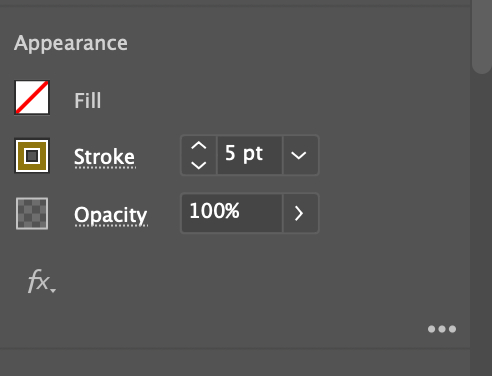
- In the Properties panel, set the Stroke width to 5 pt (see screenshot).
- Finally, use the Ellipse tool again to draw a couple of small white circles. These will be the highlights (see screenshot).
Now we will add a shadow to the ornament, to give it dimension.
You will have a duplicate circle over the top of the first circle.
Now we will use the Shape Builder tool to cut away the part of the circle that is not the shadow. But first we need to draw a third circle. The Shape Builder tool will use this circle as a guide for how much to cut away.
You should now have a moon shape on top of the ornament circle (see screenshot).
Now we will make the top of the ornament.
Index - How to Draw a Holiday Theme Collection of Elements
Copyright 2023 Adobe Systems Incorporated. All rights reserved. Adobe(R) product screen shots reprinted with permission from Adobe Systems Incorporated. Adobe Illustrator(R) is either a registered trademark or a trademark of Adobe Systems Incorporated in the United States and/or other countries.

Related Articles
Editor's Picks Articles
Top Ten Articles
Previous Features
Site Map
Content copyright © 2023 by Diane Cipollo. All rights reserved.
This content was written by Diane Cipollo. If you wish to use this content in any manner, you need written permission. Contact Diane Cipollo for details.