

Hand Lettering 3 Easy Steps to Typography Styles
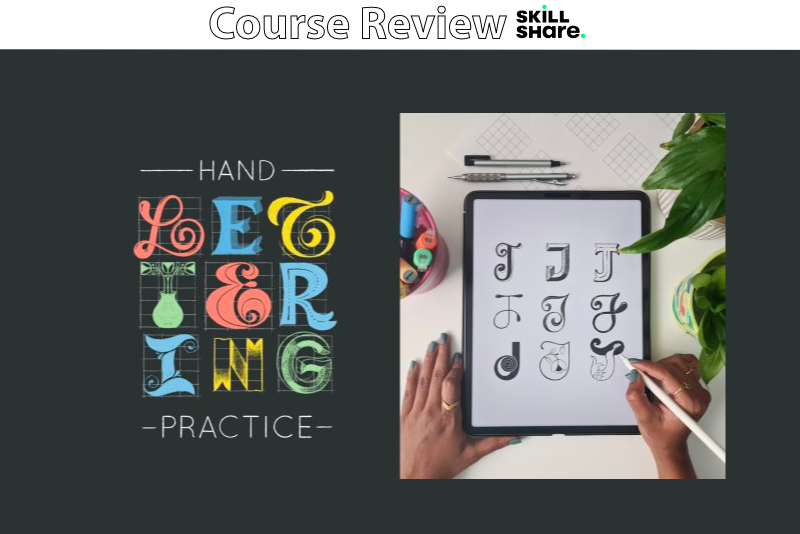
In this Skillshare course, entitled Hand Lettering Practice: 3 Easy Steps to Explore New Typography Styles, Vinitha Mammen shares her three step process for creating your own typography style in Procreate. The three steps in her process are proportion, shape and detail. The class project is to create nine variations of each letter.
Are you interested in designing your own typography but just can't get started? Mammen has simplified she creative process in to three steps. She begins with a short introduction of herself and her process. She suggest sharing the class project on Skillshare, as well as on Instagram. She offers five downloads, which are templates to use in the course. You can use the templates both on the iPad or print the templates.
Mammen begins by demonstrating the first step, which is proportions. She suggests that this step is best for upper case letters and numbers. She uses her grid template as a guide, as she draws the same letter several times, varying the width for each letter example. She discusses the why behind the decisions she makes as she designs each letter on the grid. She also demonstrates how you can create different variations of the letters by changing the number of squares in the grid.
The second step in her process is to concentrate on shapes. Mammen demonstrates that by varying the ends or corners of the letters, you can create entirely different shaped letters. She also shows how important it is to vary the thickness of the letter. In the third step she demonstrates how adding details can change the look or style of the letter. She shows how to create a 3D style letter and how to add details to the end of the letters for a delicate style. She also discusses how to add a pattern inside the body of the letter and add highlight details.
Once her three step process is covered, Mammen moves on to another example. She begins with drawing a capital letter J on the template grid and discusses the difference between upstrokes and downstrokes. Next, she begins with a monoline letter and adds details such as shading and highlights. She also demonstrates how to turn a letter into a flower and a mermaid.
Mammen finishes the course by discussing how the course project can be used as a reference library of letters.
Hand Lettering Practice: 3 Easy Steps to Explore New Typography Styles by Vinitha Mammen
https://www.skillshare.com/en/classes/Hand-Lettering-Practice-3-Easy-Steps-to-Explore-New-Typography-Styles/729221157?via=user-profile
Disclosure: As a participant in the Skillshare affiliate program, some of the links in this article are affiliate links. However, my opinions are completely my own based on my experience.
Screenshots used by permission of Skillshare .
Are you interested in designing your own typography but just can't get started? Mammen has simplified she creative process in to three steps. She begins with a short introduction of herself and her process. She suggest sharing the class project on Skillshare, as well as on Instagram. She offers five downloads, which are templates to use in the course. You can use the templates both on the iPad or print the templates.
Mammen begins by demonstrating the first step, which is proportions. She suggests that this step is best for upper case letters and numbers. She uses her grid template as a guide, as she draws the same letter several times, varying the width for each letter example. She discusses the why behind the decisions she makes as she designs each letter on the grid. She also demonstrates how you can create different variations of the letters by changing the number of squares in the grid.
The second step in her process is to concentrate on shapes. Mammen demonstrates that by varying the ends or corners of the letters, you can create entirely different shaped letters. She also shows how important it is to vary the thickness of the letter. In the third step she demonstrates how adding details can change the look or style of the letter. She shows how to create a 3D style letter and how to add details to the end of the letters for a delicate style. She also discusses how to add a pattern inside the body of the letter and add highlight details.
Once her three step process is covered, Mammen moves on to another example. She begins with drawing a capital letter J on the template grid and discusses the difference between upstrokes and downstrokes. Next, she begins with a monoline letter and adds details such as shading and highlights. She also demonstrates how to turn a letter into a flower and a mermaid.
Mammen finishes the course by discussing how the course project can be used as a reference library of letters.
Hand Lettering Practice: 3 Easy Steps to Explore New Typography Styles by Vinitha Mammen
https://www.skillshare.com/en/classes/Hand-Lettering-Practice-3-Easy-Steps-to-Explore-New-Typography-Styles/729221157?via=user-profile
Disclosure: As a participant in the Skillshare affiliate program, some of the links in this article are affiliate links. However, my opinions are completely my own based on my experience.
Screenshots used by permission of Skillshare .

Related Articles
Editor's Picks Articles
Top Ten Articles
Previous Features
Site Map
Content copyright © 2023 by Diane Cipollo. All rights reserved.
This content was written by Diane Cipollo. If you wish to use this content in any manner, you need written permission. Contact Diane Cipollo for details.





