

Planner Template Kit - Lined Note Paper Layout
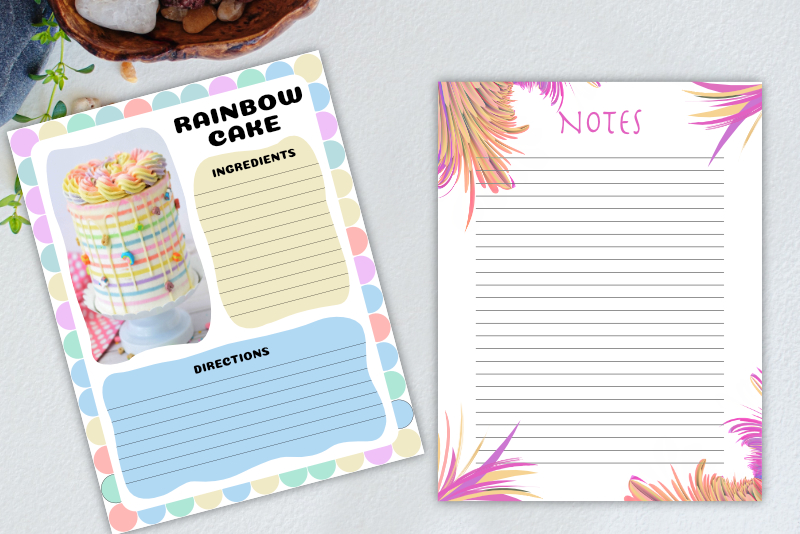
In this Affinity Designer tutorial, we will create a simple notes paper layout template. This layout will have a text placeholder for the title at the top of the page and lines for writing notes with the Apple Pencil® in GoodNotes™. Once we are done with the notes template, you will be able to add your artwork to the template and export the final design as a .png, .pdf or .jpg.
Screenshots used by permission of Serif (Europe) Ltd. This article is not endorsed by Serif Ltd.
Screenshots used by permission of Time Base Technology Limited.
- Open the 002_digitalPlannerTemplateKit in to Affinity® Designer.
- In the Layers panel, select and duplicate the manuscriptLayout group layer. Rename the duplicate layer to notesLayout and drag it to the bottom of the Layers panel (see screenshot).
- On the canvas, drag the duplicate manuscriptLayout artboard below the original.
- Select the components artboard. Type the text Title Placeholder on the canvas.
- In the Context toolbar, set the Font Family to Helvetica, the Font Style to regular, the Font Size to 36 pt, the Font Color to black and the Alignment to Centered (see screenshot).
- In the Transform panel, set the X value to 204 pixels and the Y value to 72 pixels.
- From the components artboard, select and copy the text placeholder. In the notesLayout artboard, paste the text placeholder. In the Transform panel, the X value should be 204 px and the Y value should be 72 px.
- In the Layers panel, open the fillerPapers artboard group layer. Right-click and copy the writingLines 24 apart layer.
- On the canvas of the notesLayout template artboard, select the artboard and paste the writingLines in to the template.
- In the notesLayout template artboard, select and delete the top and bottom overlapping lines (see screenshot).
- In the Layers panel, select all of the lines. On the canvas, resize the lines so that the lines only extend to the edge of the content area, as indicated by the black stroke (see screenshot).
- Save your work (File - Export as Template).
We will start by adding a new artboard for the notes layout template. Because it is based on the Manuscript grid layout, we will duplicate the manuscriptLayout artboard.
Let's create the title placeholder text and save it in the components artboard as a text placeholder.
For each design that you create using this text placeholder, you will probably want to change these settings to match your design.
Now we can copy/paste this text placeholder from the components artboard and in to the notesLayout template artboard.
Next, we will copy/paste the writing lines that we created in a previous tutorial (see screenshot).
As you can see, some of the lines overlap the title text and extend into the margin area (see screenshot). Let's remove the lines that are over the text and extend into the top and bottom margins.
Screenshots used by permission of Serif (Europe) Ltd. This article is not endorsed by Serif Ltd.
Screenshots used by permission of Time Base Technology Limited.

Related Articles
Editor's Picks Articles
Top Ten Articles
Previous Features
Site Map
Content copyright © 2023 by Diane Cipollo. All rights reserved.
This content was written by Diane Cipollo. If you wish to use this content in any manner, you need written permission. Contact Diane Cipollo for details.








