Navigational Menu Image Flash Website

In this tutorial we will import the image you plan to use as the background image for the navigational menu of your Flash website. As mentioned in the last tutorial, this image should be a PNG image at 550 x 100 pixels. We will place it on top of the stage by using the Flash Import feature. Later in this series we will create the menu buttons that will go on top of this background menu image. Open your Flash website movie into Flash.
Step 1. Import your PNG image. It is very easy to import an image into Flash. You simply click File > Import > Import to Stage and Flash will put your image right on the stage for you.
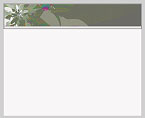
Flash Website Stage
By default, your image is placed at the upper left corner of the stage (X and Y coordinates 0.0). Let's make sure it is at these coordinates on the stage. Using the Selection Tool (black arrow), click on the menu image to make it the active/editable object. Now check the Property Inspector. It should say Bitmap and next to Instance of: there should be the name of your image. The Width should be 550 pixels, the Height should be 100 pixels and the X and Y coordinates should both be 0.0. If the image is not at these coordinates, type 0.0 into the boxes next to both X and Y and click Enter.
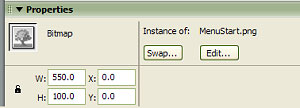
Property Inspector
Step 2. The Library Panel. Flash automatically places the images that you import onto the stage into the Library Panel just in case you need to use the image later in your movie. If you do, you do not need to import a second copy of the image. Just click and drag it onto the stage from the Library Panel. If the Library Panel is not visible, click Windows > Library. When the Library Panel opens, you should see your menu image listed there.
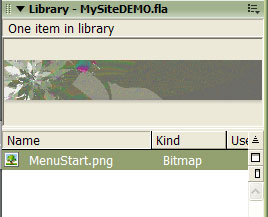
Library Panel
Step 3. Save your movie. You will want to save this new version of your Flash website movie. Click File > Save.
Macromedia Flash MX 2004 Workspace
Copyright 2018 Adobe Systems Incorporated. All rights reserved. Adobe product screen shot(s) reprinted with permission from Adobe Systems Incorporated. Adobe, Photoshop, Photoshop Album, Photoshop Elements, Illustrator, InDesign, GoLive, Acrobat, Cue, Premiere Pro, Premiere Elements, Bridge, After Effects, InCopy, Dreamweaver, Flash, ActionScript, Fireworks, Contribute, Captivate, Flash Catalyst and Flash Paper is/are either [a] registered trademark[s] or a trademark[s] of Adobe Systems Incorporated in the United States and/or other countries.
Step 1. Import your PNG image. It is very easy to import an image into Flash. You simply click File > Import > Import to Stage and Flash will put your image right on the stage for you.

Flash Website Stage
By default, your image is placed at the upper left corner of the stage (X and Y coordinates 0.0). Let's make sure it is at these coordinates on the stage. Using the Selection Tool (black arrow), click on the menu image to make it the active/editable object. Now check the Property Inspector. It should say Bitmap and next to Instance of: there should be the name of your image. The Width should be 550 pixels, the Height should be 100 pixels and the X and Y coordinates should both be 0.0. If the image is not at these coordinates, type 0.0 into the boxes next to both X and Y and click Enter.
Property Inspector
Step 2. The Library Panel. Flash automatically places the images that you import onto the stage into the Library Panel just in case you need to use the image later in your movie. If you do, you do not need to import a second copy of the image. Just click and drag it onto the stage from the Library Panel. If the Library Panel is not visible, click Windows > Library. When the Library Panel opens, you should see your menu image listed there.
Library Panel
Step 3. Save your movie. You will want to save this new version of your Flash website movie. Click File > Save.
Macromedia Flash MX 2004 Workspace
Copyright 2018 Adobe Systems Incorporated. All rights reserved. Adobe product screen shot(s) reprinted with permission from Adobe Systems Incorporated. Adobe, Photoshop, Photoshop Album, Photoshop Elements, Illustrator, InDesign, GoLive, Acrobat, Cue, Premiere Pro, Premiere Elements, Bridge, After Effects, InCopy, Dreamweaver, Flash, ActionScript, Fireworks, Contribute, Captivate, Flash Catalyst and Flash Paper is/are either [a] registered trademark[s] or a trademark[s] of Adobe Systems Incorporated in the United States and/or other countries.

Related Articles
Editor's Picks Articles
Top Ten Articles
Previous Features
Site Map
Follow @ArtAnimationTut
Tweet
Content copyright © 2023 by Diane Cipollo. All rights reserved.
This content was written by Diane Cipollo. If you wish to use this content in any manner, you need written permission. Contact Diane Cipollo for details.