More Unlimited Elements for Elementor
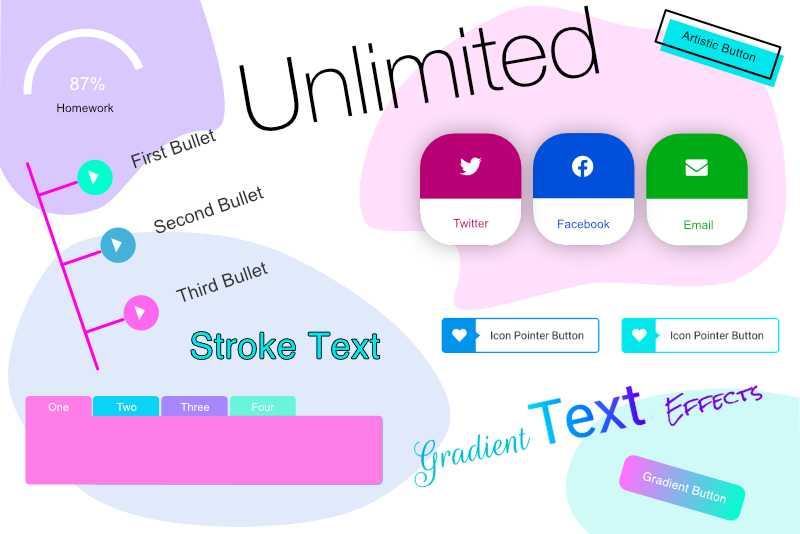
In the last article, we discovered the large library of fully customizable widgets that are included in the Unlimited Elements for Elementor plugin. They cover all uses from bullet list to content boxes. But there are some widgets that are related to the working parts of the website. Let's take a look at the other half of the plugin.
The widget that you see all over the web is the Side Menu widget. This widget displays the menu on demand by sliding it in from the side. I especially like that it covers only a part of the webpage when open.
Believe it or not, there are more widgets that we haven't covered, including the following.
Marketing Widgets
Progress Bar Widgets
Content, Icon and Product Box Widgets
Accordions, Tab and Logo Widgets
Social Icon and Instagram Widgets
Team Members Widgets
Hover Effects, Lightbox and Animated Widgets
Separators, Dividers and Block Quotes Widgets
With all of these widgets in one plugin, you might wonder if it will cause problems. However, when you install the plugin, all of the widgets are not automatically installed. There is a plugin page with a complete list of all the widgets and each thumbnail opens a demo. You can browse all you want and then choose which widgets you wish to install. That way only the widgets you need are downloaded from the cloud and installed. Of course, if you decide that you need another widget, you can always go back to the Unlimited Elements section of the Wordpress Dashboard and install more widgets.
Unlimited Elements for Elementor Plugin →
Wordpress.org
Elementor Page Builder Plugin
Unlimited Elements for Elementor
Elementor screenshots used by permission of Pojo Me Digital LTD
WordPress, Elementor and Unlimited Elements for Elementor are licensed under the General Public License (GPLv2 or later).
Menu Widgets
Are you tired of your old header menu? There are several widgets that display the menu only when needed (see screenshot). One is the Fullscreen Navigation Menu widget, which displays the menu in a full page popup overlay. Another full screen menu widget is the Liquid Full Screen Menu. Instead of a popup overlay, this widget has an animation that 'pours' a colorful background over the entire screen and displays the menu on top.The widget that you see all over the web is the Side Menu widget. This widget displays the menu on demand by sliding it in from the side. I especially like that it covers only a part of the webpage when open.
Hero Widgets
If you would like to customize your header section, you will want to try the Hero Widgets (see screenshot). The Title Hero widget has several variations of a text overlay with a parallax effect. There are also several Split Hero widgets that have side by side panels. One panel has an image and the other panel has the text. Of course, you aren't limited to just an image, there is also a Split Video Hero widget.Footer Widgets
If you are at a loss as to what to put in your webpage footer section, try out the Material Footer Card widget (see screenshot). This widget has several colorful box designs for displaying your contact information, including solid colors, gradients, rounded corners and circles. You also have the Icon Footer Box and Horizontal Footer Box widgets.Background Widgets
A recent addition to the plugin are animated background widgets (see screenshot). These cover the full page and have very colorful animations. Some of the backgrounds have subtle animations, such as Snow Flakes, Snow Balls, Particles and Confetti. Other background animations are less subtle, such as Huge Shapes, Blob Animation, Animated Squares and Sliding Diagonals.Believe it or not, there are more widgets that we haven't covered, including the following.
Marketing Widgets
Progress Bar Widgets
Content, Icon and Product Box Widgets
Accordions, Tab and Logo Widgets
Social Icon and Instagram Widgets
Team Members Widgets
Hover Effects, Lightbox and Animated Widgets
Separators, Dividers and Block Quotes Widgets
Template Kits
If this is your first website or you have limited time, you will want to consider using one of the Template Kits (see screenshot) that are included in the plugin. The kits are theme based, such as for a restaurant, metro and beauty website. Each Template Kit has pre-built page layouts, such as a home, about and projects pages.Widget Creator
This is a great feature! You can customize the widgets further using the Widget Creator (see screenshot). You can even create your own widgets. All you need is a little knowledge of HTML, CSS, Javascript and the Widget Creator.Integrations
More and more web developers are adding custom post types and custom database tables. If you are one of them, you will be glad to know that this plugin has support for the ACF, PODS and Toolset frameworks.Online Documentation
Although this isn't really part of the Widget Library, you will want to check out the documentation on the website. It covers everything you might need from a Getting Started section and some great Usage Examples to several tutorials about using the Widget Creator.With all of these widgets in one plugin, you might wonder if it will cause problems. However, when you install the plugin, all of the widgets are not automatically installed. There is a plugin page with a complete list of all the widgets and each thumbnail opens a demo. You can browse all you want and then choose which widgets you wish to install. That way only the widgets you need are downloaded from the cloud and installed. Of course, if you decide that you need another widget, you can always go back to the Unlimited Elements section of the Wordpress Dashboard and install more widgets.
Unlimited Elements for Elementor Plugin →
Wordpress.org
Elementor Page Builder Plugin
Unlimited Elements for Elementor
Elementor screenshots used by permission of Pojo Me Digital LTD
WordPress, Elementor and Unlimited Elements for Elementor are licensed under the General Public License (GPLv2 or later).

Related Articles
Editor's Picks Articles
Top Ten Articles
Previous Features
Site Map
Content copyright © 2023 by Diane Cipollo. All rights reserved.
This content was written by Diane Cipollo. If you wish to use this content in any manner, you need written permission. Contact Diane Cipollo for details.