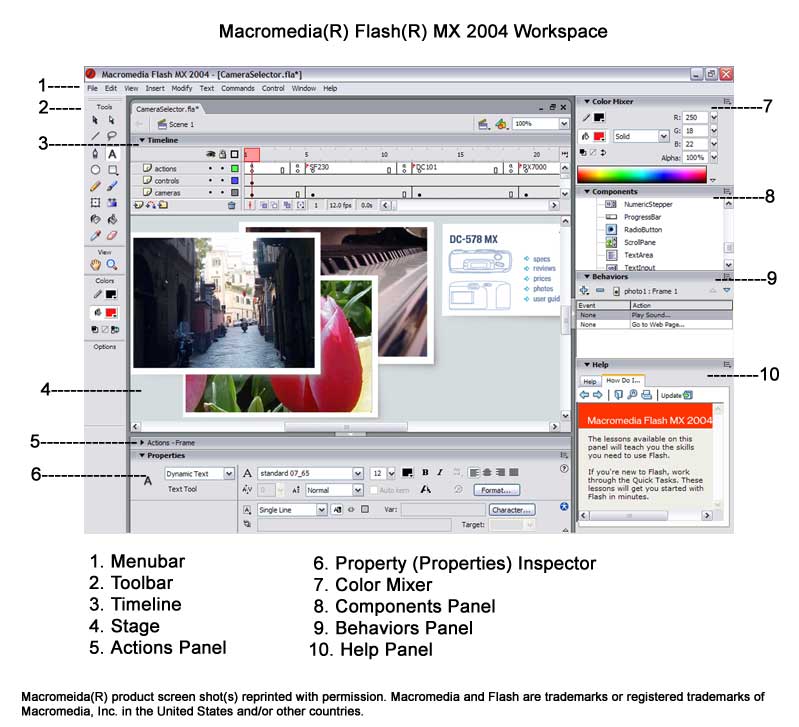
Macromedia Flash MX 2004 Workspace

At first glance the MacromediaR FlashR MX 2004 workspace is intimidating and learning to use Flash may seem an impossible task. But as with other large tasks, when you break down the Flash workspace and examine each part separately, it becomes much less intimidating. Larger View
Menubar - As with most programs of this type, the Flash workspace has the familiar Menubar at the top of the screen. This works like any menubar and displays drop-down lists of controls.
Timeline - The Timeline is the most important tool in Flash. With it you can control and sequence your Flash animation or movie. You can think of a Flash project as a mini movie that is made up of many frames, just like a real movie is made up of many frames. You can control the sequence of your Flash project by placing certain control points (Keyframes) on the Timeline.
Tools Toolbar - If you have used any graphic program such as Paint ShopTM ProR or PhotoshopR, you will recognize the Toolbar. This is where you will find all the fun tools for drawing, painting, selecting objects and controlling color.
Stage - This is where all the magic is created. You can think of the Stage as your canvas. You will build your Flash project by adding graphics, text, actions and more onto stackable layers on the Stage.
Actions Panel - In this panel you have the option to use prewritten code or write your own program code using Flash's ActionScript language. By adding ActionScript programming to your Flash project, you can make it do almost anything.
Property Inspector - This panel is where you can control the settings for any object (text, graphic, etc) or tool.
Color Mixer - This is the panel where you can choose solid colors or gradient fills. You can work in the usual RGB or HSB color modes. You can also store your own color swatches.
Components Panel - In this panel you will find all the prebuilt elements such as buttons and scrollbars. Just drag and drop to add one to your project.
Behaviors Panel - This panel works like the Components Panel. You can choose from any prewritten ActionScript such as button behaviors and just drag and drop.
Help Panel - The help contents load into this panel. You can search for a topic, choose from an alphabetic list or use the expandable index. The help file is updateable as an automated download from the Macromedia website.
Macromedia Flash MX 2004 Workspace
Copyright 2018 Adobe Systems Incorporated. All rights reserved. Adobe product screen shot(s) reprinted with permission from Adobe Systems Incorporated. Adobe, Photoshop, Photoshop Album, Photoshop Elements, Illustrator, InDesign, GoLive, Acrobat, Cue, Premiere Pro, Premiere Elements, Bridge, After Effects, InCopy, Dreamweaver, Flash, ActionScript, Fireworks, Contribute, Captivate, Flash Catalyst and Flash Paper is/are either [a] registered trademark[s] or a trademark[s] of Adobe Systems Incorporated in the United States and/or other countries.

Related Articles
Editor's Picks Articles
Top Ten Articles
Previous Features
Site Map
Follow @ArtAnimationTut
Tweet
Content copyright © 2023 by Diane Cipollo. All rights reserved.
This content was written by Diane Cipollo. If you wish to use this content in any manner, you need written permission. Contact Diane Cipollo for details.