Affinity Designer DIY Vector Brush - Base Image
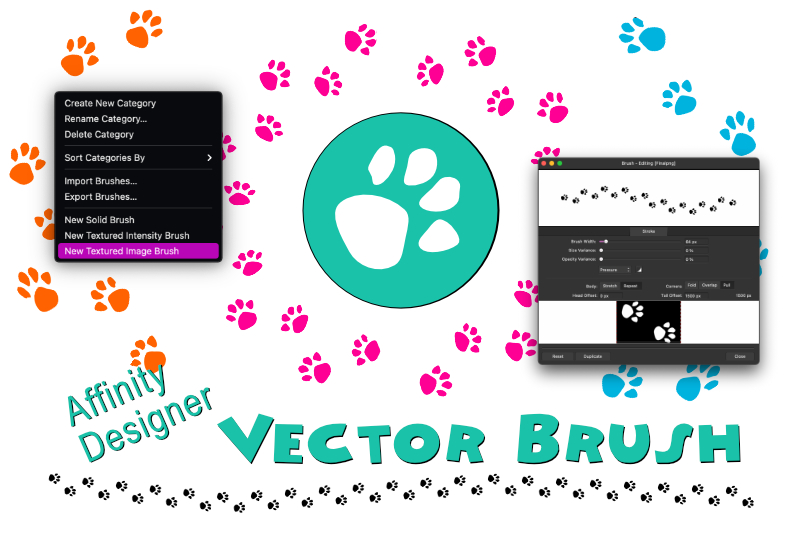
Now that we have our paw print image, we are ready to build the base image for our vector brush in Affinity Designer. We want our brush to create a continuous path of paw prints. We can achieve this by setting the paw print image, called a texture, to repeat along the vector path.
As we decide on the width of the final Canvas for the brush (see screenshot), we not only need to add the width of two paw prints together but we also need to add an empty space between them (indicated in red). Finally, we need a little empty space at the front and back edges of the Canvas.
As for the height of the final Canvas, we will need to double the height of the paw print.
So we need a new document that is about 1500 pixels wide x 1000 pixels high. Create a new document with these settings or the custom settings for your own brush.
Back | Next
Screenshots used by permission of Serif (Europe) Ltd. This article is not endorsed by Serif Ltd.
As we decide on the width of the final Canvas for the brush (see screenshot), we not only need to add the width of two paw prints together but we also need to add an empty space between them (indicated in red). Finally, we need a little empty space at the front and back edges of the Canvas.
As for the height of the final Canvas, we will need to double the height of the paw print.
So we need a new document that is about 1500 pixels wide x 1000 pixels high. Create a new document with these settings or the custom settings for your own brush.
- Copy the Paw Print group from our working document and paste it into this new document.
- In the Transform panel (see screenshot), set the X value to 125 pixels and the Y value to zero for the first paw print. Of course, you will want to use your own custom settings.
- In the Layers panel, duplicate the Paw Print group layer.
- In the Transform panel (see screenshot), set the X value to 875 pixels and the Y value to 500 pixels for this second Paw Print group.
- With the duplicate Paw Print group layer selected with the Move tool, click the Flip Vertical button in the Transform section of the top Toolbar.
- Click File - Export - PNG tab. Keep the default settings and save (see screenshot).
The easiest way to position the paw prints is to use the Transform panel. The Anchor Point on the small grid to the top left of the panel determines the X,Y position. We need the Anchor Point to be in the upper left corner (see screenshot).
Now, we need to move the duplicate to the right and down to the bottom of the Canvas.
Finally, let's flip the paw print.
Now that we have the paw prints positioned, we can export the image as a transparent .png.
Back | Next
Screenshots used by permission of Serif (Europe) Ltd. This article is not endorsed by Serif Ltd.

Related Articles
Editor's Picks Articles
Top Ten Articles
Previous Features
Site Map
Content copyright © 2023 by Diane Cipollo. All rights reserved.
This content was written by Diane Cipollo. If you wish to use this content in any manner, you need written permission. Contact Diane Cipollo for details.