

Global Colors in Affinity Designer
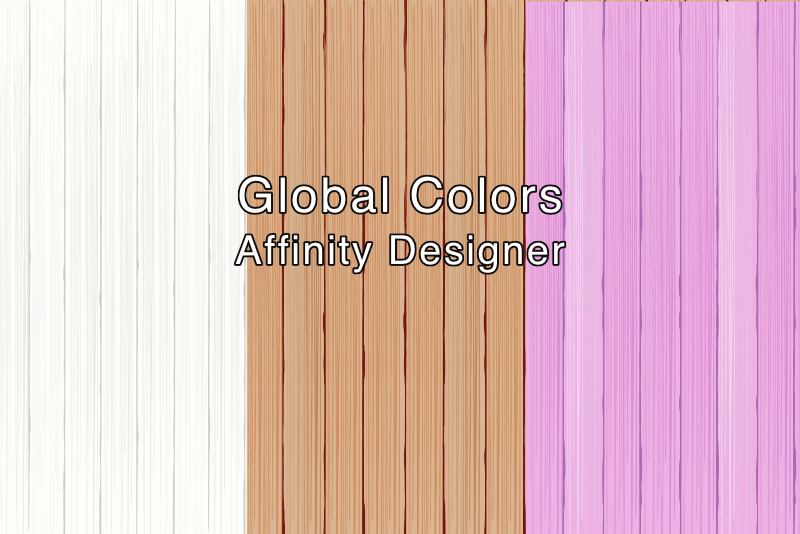
In this last tutorial in the series, we will be working with the Global Colors. We can use Global Colors to make subtle changes in the color of the wood. Or, you can go crazy with color to make a bright and fun background.
As you know, we have assigned all of the colors used in our project as Global Colors. Now we can use these Global Colors to create variations of our wood paneling background. Let's start by changing the color of the paneling to a more saturated brown color.
Back
Screenshots used by permission of Serif (Europe) Ltd. This article is not endorsed by Serif Ltd.
What are Global Colors
Global Colors are a special type of color in Affinity Designer. It's not the color itself that is special but the special way you use Global Colors in your project. Global Colors are very similar to Symbols. You can set a fill or stroke color as a Global Color and you can use Global Colors in several color modes from RGB to Tint. Once you assign a Global Color to an object or objects, you can quickly change the color of those objects just by changing the Global Color itself.
Global Colors are a special type of color in Affinity Designer. It's not the color itself that is special but the special way you use Global Colors in your project. Global Colors are very similar to Symbols. You can set a fill or stroke color as a Global Color and you can use Global Colors in several color modes from RGB to Tint. Once you assign a Global Color to an object or objects, you can quickly change the color of those objects just by changing the Global Color itself.
As you know, we have assigned all of the colors used in our project as Global Colors. Now we can use these Global Colors to create variations of our wood paneling background. Let's start by changing the color of the paneling to a more saturated brown color.
- In the Swatches panel, open the WoodTexture Document palette (see screenshot).
- Right-click on the Base Color swatch and choose Edit Fill. In the pop-up box, change the color code to DAB592.
- Right-click on the Panel Lines swatch and choose Edit Fill. Set the color to 73130C.
- Repeat these steps for the Filler Texture swatches, changing the swatches to the colors below.
- Now that we know how to use Global Colors, we can continue to create variations of our paneling. Use the colors below to make a light pink paneling (see screenshot).
You should see the background rectangle change to a light brown color. Let's change the panel lines to a dark brown.
Filler Texture 1 - CF9061
Filler Texture 2 - C48A69
Filler Texture 3 - CCA27C
Filler Texture 4 - C08759
Base Color - EFB5E6
Panel Lines - B237C2
Filler Texture 1 - E5A1D7
Filler Texture 2 - DD94D8
Filler Texture 3 - F1D5EE
Filler Texture 4 - EAC2E6
Back
Screenshots used by permission of Serif (Europe) Ltd. This article is not endorsed by Serif Ltd.

Related Articles
Editor's Picks Articles
Top Ten Articles
Previous Features
Site Map
Content copyright © 2023 by Diane Cipollo. All rights reserved.
This content was written by Diane Cipollo. If you wish to use this content in any manner, you need written permission. Contact Diane Cipollo for details.







