

DXT Presicision Mouse - Product Review

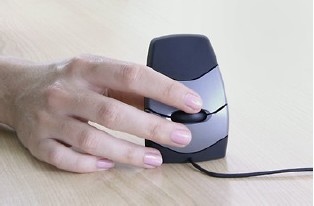 The DXT Precision Mouse is an departure from standard vertical or highly canted mouse design. In fact, hand contact with the mouse is restricted to the fingers and thumb. It easily transitions between right and left-handed positions, has a small footprint and is very light-weight. Depending on how you hold it, the DXT can approach a 'pen grip'.
The Mouse is flexible and responsive. How responsive it actually is can be set using an 'on the mouse' switch. Also on the mouse is the toggle switch for changing from right hand to left hand operation. These are both great conveniences.
The bottom of the mouse, its 'footprint' is about 1.5 x 2 inches. This is smaller than I have seen on any other existing mouse. This allows it to be used on a relatively small mousepad area. Its overall compact size makes it a good travel mouse.
Innovative Design
The most innovative feature of the DXT mouse is the hand position. The little finger side of the hand rests on the table and glides along with the mouse as it is operated. The wrist can be maintained in a neutral position (° extension, no radial or ulnar deviation). The resistance of the hand against the table decreases likelihood of wrist flexion or extension to move the mouse – the forearm has less resistance.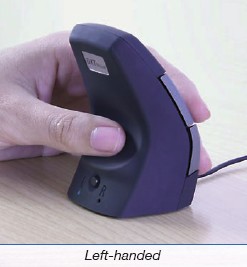 There is little need for grip. The thumb is used to stabilize and guide the mouse in an essentially stationary position. Although the thumb is placed in a pinch posture, a pinch is not required. In fact, the mouse buttons are sensitive enough to discourage significant pinch pressure.
Thumb Placement
My only concern with this mouse would be recommending this mouse for someone with thumb issues. Although it is one of the best designs I have seen for protecting the thumb from the standpoint of grip and repetitive motion requirements, in order to get the thumb into the position shown in the photo (which is good) one needs to move the forearm into moderate pronation and squish the fingers together a bit. In other words, it is a little bit low on the body of the mouse. Taken together with the placement of the cord on the corded mouse, it can be a little uncomfortable.When the hand is moved away from the mouse body to accommodate the lower thumb position, there is more of a tendency to use wrist or finger motion to control mouse movement.
A better hand and finger position results in a need to keep the thumb adducted towards the base of the middle finger. The amount of adduction depends on the size of the palm – the wider the palm, the more adduction required. With a very wide palm, the thumb could maintain sufficient control resting on the top of the mouse.
For most people this is a minor issue and should not interfere with mouse use. For those with thumb issues, unless it is in the joint where the thumb connects to the wrist (Carpal-MetaCarpal) or where the thumb joins the palm (MetaCarpal-Phalangeal) joint, or DeQuervain's there should not be a problem.
Do I Like this Mouse?
I do like this mouse. There was an initial break'in period. I started out using a program that was totally mouse driven – Solitaire. During the first hour session I felt some tiring in my forearm from the change in muscle activity pattern. The next day, it was better and then resolved. Using the mouse in programs where there is a switch between keyboard and mouse, I found it quite comfortable. The shape of the mouse allowed a smooth transition between the two devices. Although again, there was a small learning curve where I knocked the mouse off the desk a few times when reaching for it.- Responsive and flexible
- Works in small workspaces (I currently have it on a 3 inch square space)
- Encourages near neutral wrist and hand postures
- Shares the workload between the larger joints. Can be primarily used – Works well with Mouse-Key-Do postural shift method Easily accessible switch to change from Right to Left application
- No Software drivers required &@8211; Plug and Play
- PC and MAC compatible
- Compact size for travel
©2011, vhixson, all rights reserved.
Photos courtesy of the Kinesis Corporation www.kinesis.com
This site needs an editor - click to learn more!

Related Articles
Editor's Picks Articles
Top Ten Articles
Previous Features
Site Map
Content copyright © 2023 by virginia hixson. All rights reserved.
This content was written by virginia hixson. If you wish to use this content in any manner, you need written permission. Contact
BellaOnline Administration
for details.
