INDEX Design a GoodNotes Planner in Affinity Suite
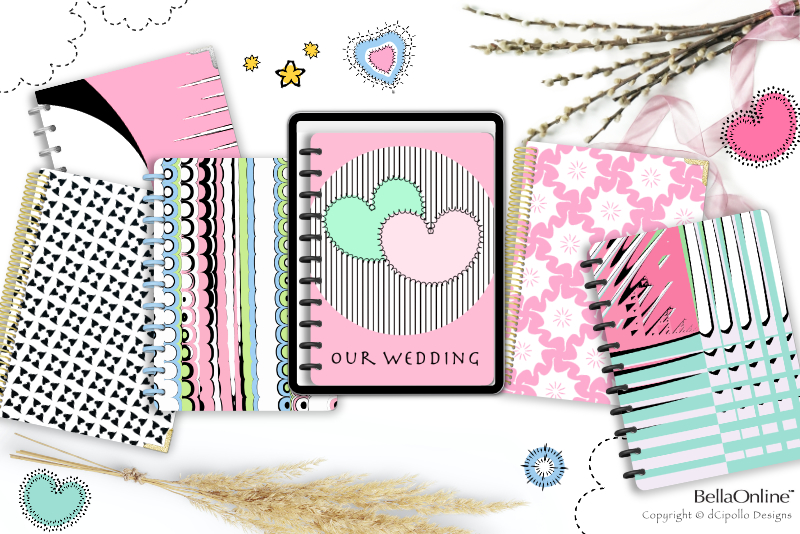
Design a GoodNotes Digital Planner in Affinity Suite
Latest Update: May 29, 2022Background
- Introduction - Design a GoodNotes Digital Planner in Affinity Suite
- Designing a GoodNotes Digital Planner - First Steps
Downloads
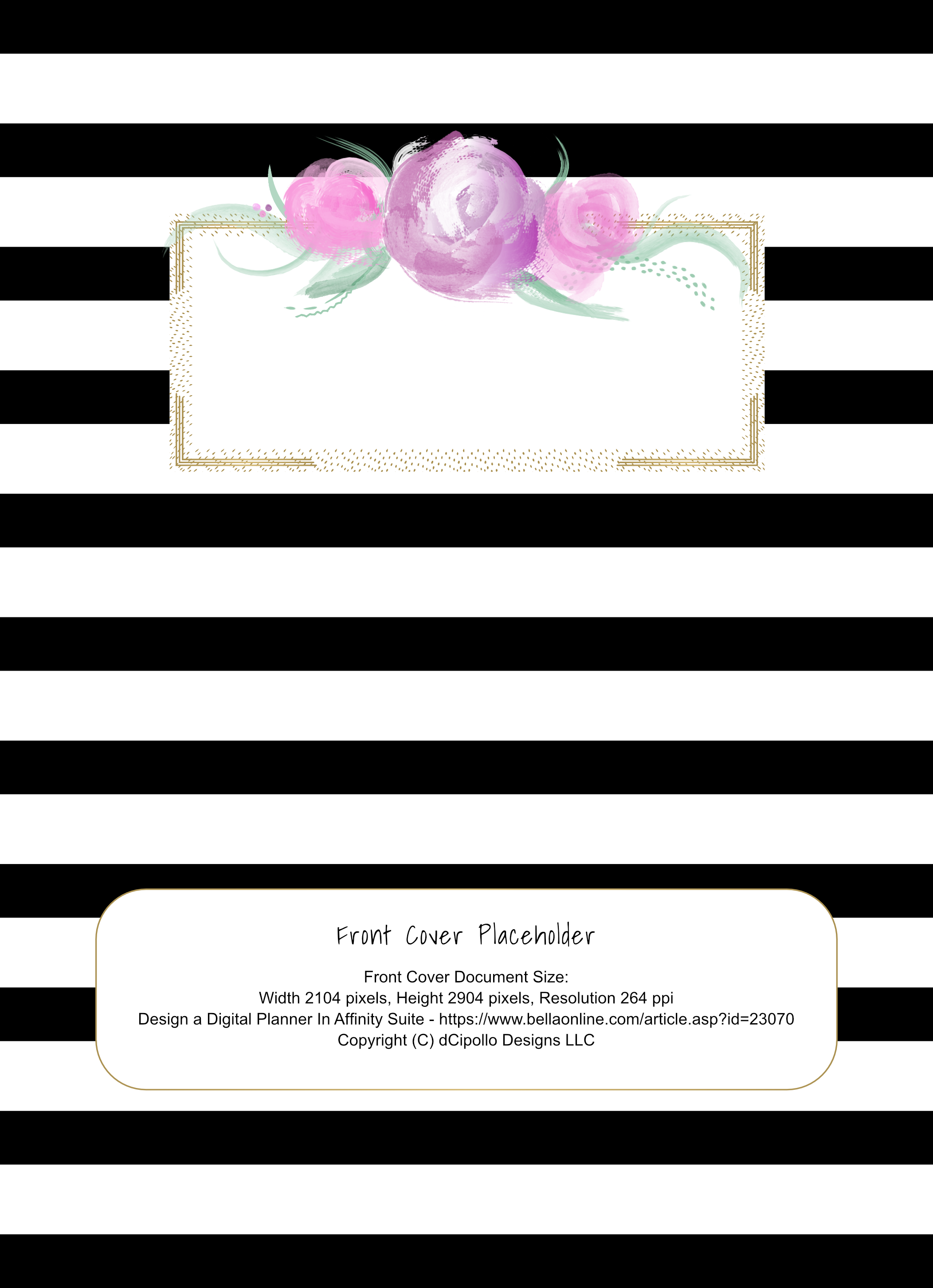
- Front Cover Placeholder
- Back Cover Placeholder
- Binder Ring Placeholder
- Inside Page Placeholder
- Endpaper (Inside Cover) Placeholder
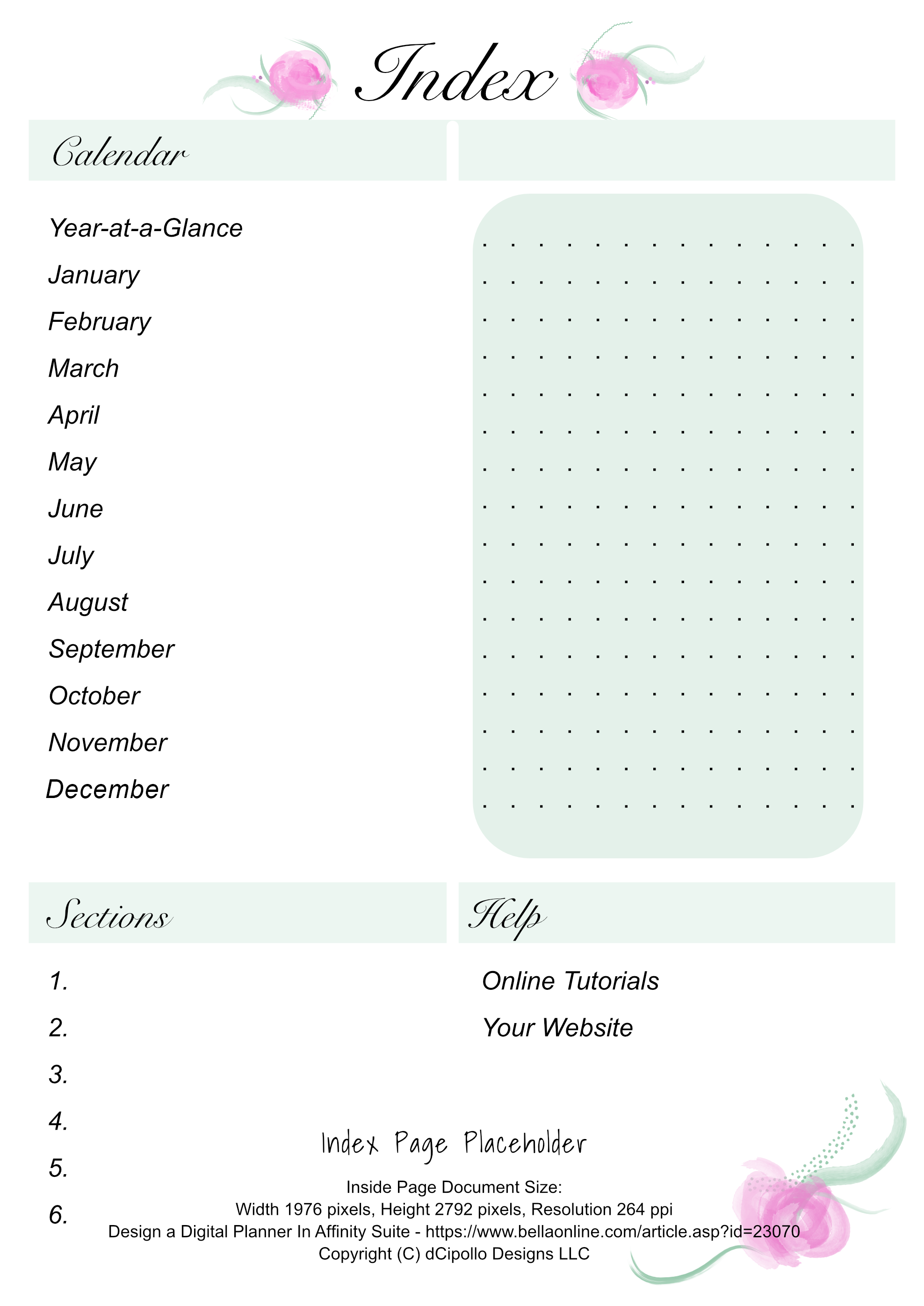
- Index Page Placeholder
- Divider Page Placeholder
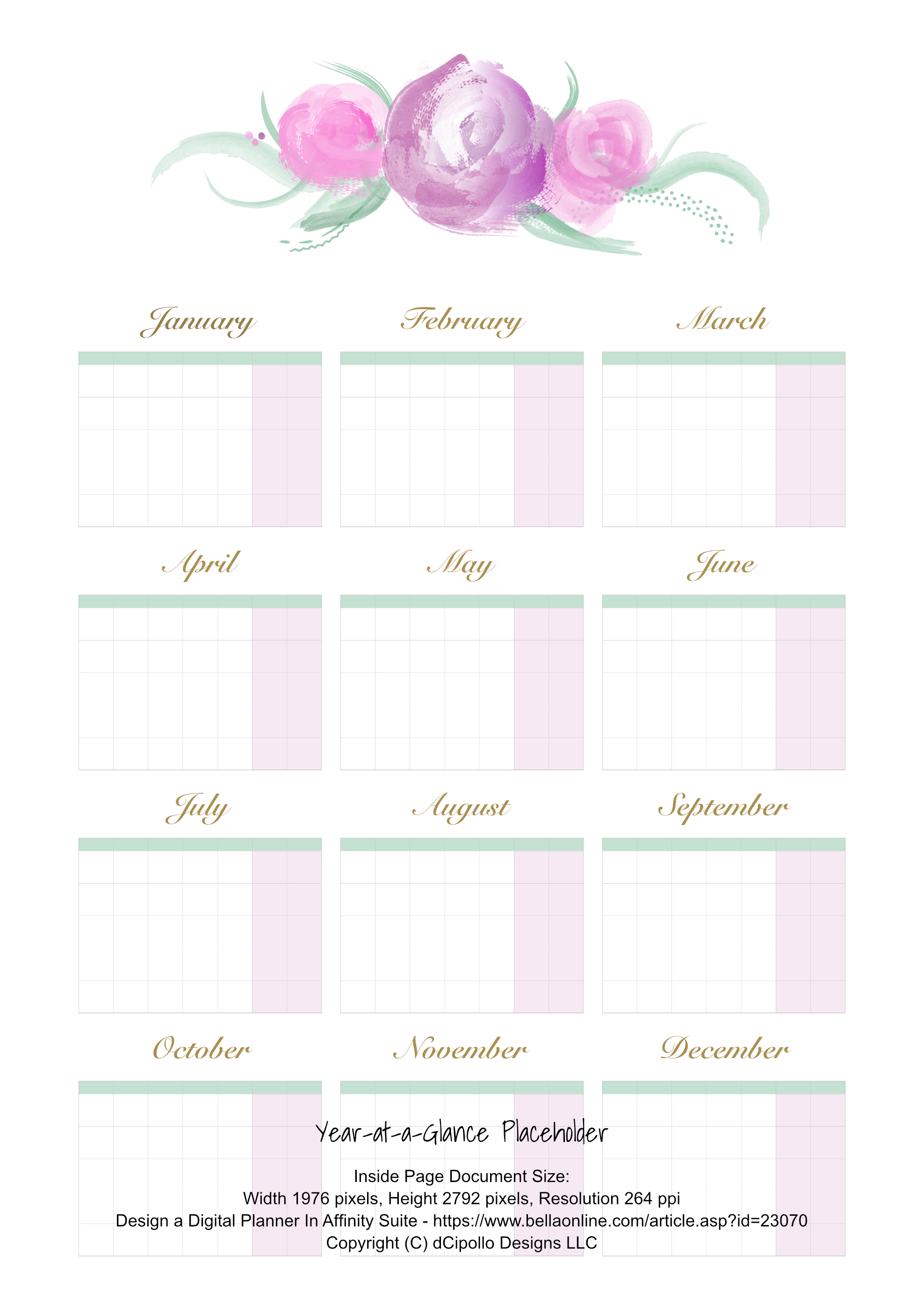
- Year-at-a-Glance Placeholder
- Monthly Calendar Placeholder
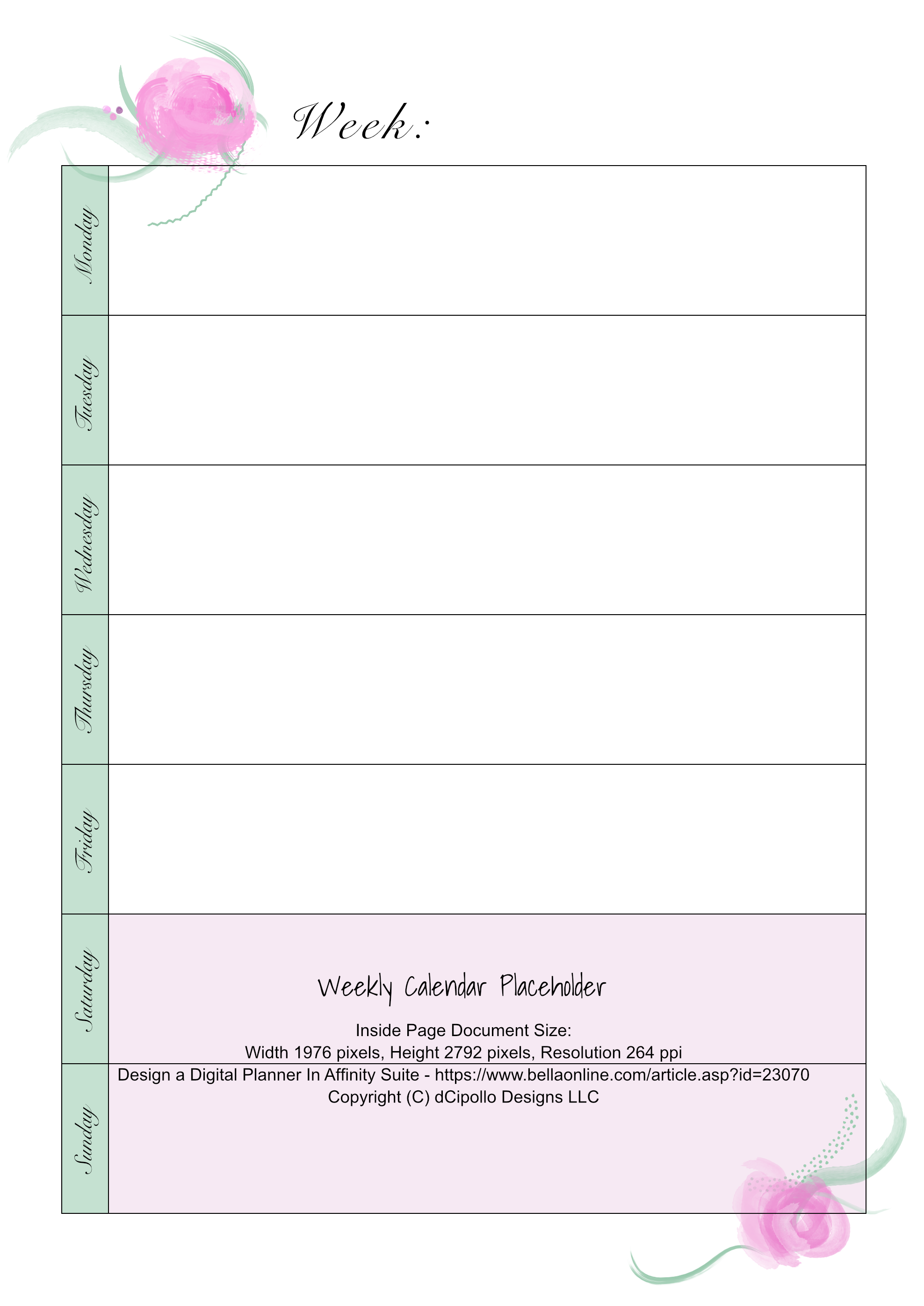
- Weekly Calendar Placeholder
Digital Planner Templates
Digital Planner Cover PDF Template
This first Affinity Publisher template will contain a front cover design with planner rings, which we will save as a one-page template. As the Full Digital Planner PDF Template is based on this Digital Planner Cover PDF Template, your first step is to complete this template.Full Digital Planner PDF Template
Starting with the completed Digital Planner Cover PDF Template, we will add more pages to this next template, including the popular Dashboard/Index, Year-at-a-Glance, Monthly and Weekly calendars, blank, lined, dotted and grid filler pages. When finished, you will have a full Affinity Publisher template that you can use to assemble your designer planners for sale in your shop.- From Digital Planner Cover to Full Digital Planner
- Full Digi Planner PDF Template - Front Cover
- Full Digi Planner PDF Template - Back Cover
- Building the Digital Planner Inside Page Master
- Full Digi Planner PDF Template - Inside Page
- Digital Planner Template Sections
- Full Digi Planner PDF Template - Page Side Tabs
- Full Digi Planner PDF Template - Page Top Tabs
- Full Digi Planner PDF Template - Top Tab Icon
- Full Digi Planner PDF Template - Side Tab Labels
- Full Digi Planner PDF Template - Planner Pages
- Full Digi Planner PDF Template - Anchors
- Full Digi Planner PDF Template - Update Graphics
- Full Digi Planner PDF Template - Page Hyperlinks
- Full Digi Planner PDF Template - Test & Export
- Full Digi Planner PDF Template - Export PDF
Digital Planner Ring Template
This Affinity Designer template is for designing the binder rings to be used in the planner templates listed above. The rings created with this template will have the correct dimensions to work in the planner templates.Digital Planner Accessory Designs
Live Repeat Pattern Preview Template
This Affinity Designer template is used for easily creating seamless repeat surface patterns for your digital planner designs. This template uses the Symbols feature, which is very powerful because we can use it to power a live preview of the pattern as we arrange the motifs on the repeat tile.Repeat Pattern Designs
Use the Live Repeat Pattern Preview template to create these repeat pattern designs for your digital planners. See the tutorials above to create the template.More Affinity Suite Tutorials
Screenshots used by permission of Serif (Europe) Ltd. This article is not endorsed by Serif Ltd.
Powered by Creative Market

Related Articles
Editor's Picks Articles
Top Ten Articles
Previous Features
Site Map
Content copyright © 2023 by Diane Cipollo. All rights reserved.
This content was written by Diane Cipollo. If you wish to use this content in any manner, you need written permission. Contact Diane Cipollo for details.