

RSI and Opening a Jar

Jar opener designs are based on four approaches:
- Enhance grip through use of a rubber, latex or similar grip aid
- Enhance grip through use of a different grip device
- Increase force potential by use of a lever principle (similar to using a pair of pliers to tighten or loosen a fastener)
- Use of a device that essentially does the job for you
Flexible Rubber Type Device
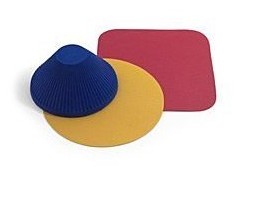 In order to effectively use this device, you need to have fairly good arm, wrist, hand and finger strength and be able to maintain the grip at a constant or increasing level. These devices will only improve the efficiency of whatever strength you are able to put forth. If they work for you they are the cheapest and easiest solution.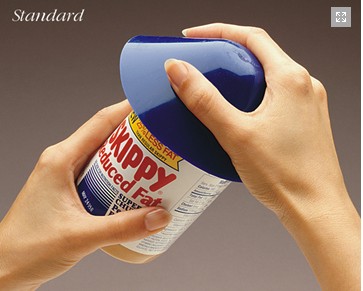
Recently these have become fairly popular in the general marketplace and are often found in grocery, hardware, and kitchen stores.
Wedge Type Device
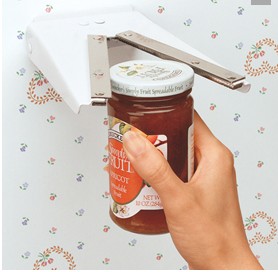 The Wedge Type Device (I'm not sure what to call it) is an essentially triangular piece of metal, plastic, or other material that has a grip surface on the side to catch both sides of the lid. Good devices of this type provide a lot of stability. My favorite is the Zim as shown above. This somewhat ugly device ( mine was bright orange) can be mounted on the wall as shown, a slight different model mounted under the cabinet, or hand–held.
Except when hand–held, these openers allow use of two hands to apply turning force to the jar body as the lid is securely held. They work with jars up to a 4 inch diameter. The hand&38211;held method allows most force to come from the large arm muscles, as hands are placed one on the device with the wedged lid and one on the jar body, turning in opposite directions.
The OXO Good Grips opener is similar. 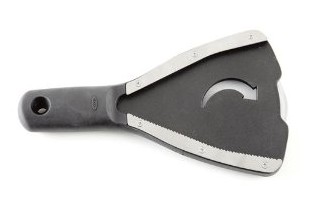 The OXO however, comes with a handle — and you need to stabilize the opener on the lid with one hand. I find that the handle, rather than acting as an effective lever, actually makes it harder to use. I tend to use the OXO the same way I use the Zim. One hand is placed on the wedge opener, stabilizing and turning the lid, while the other turns the body of the jar in the other direction.
Lever Devices
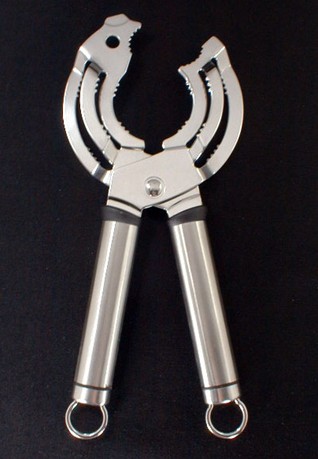
The Lever is a basic tool and does work to 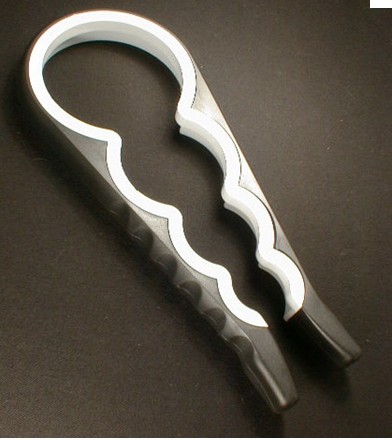 increase effective strength. The difficulty with most lever type Jar Openers is that they require good hand and finger strength to operate. Most depend on your ability to squeeze or hold two handles forcefully together with one hand while turning the lid and while stabilizing the jar with the other. If you have good initial strength but difficulty maintaining a strong grip, this is not the style for you.
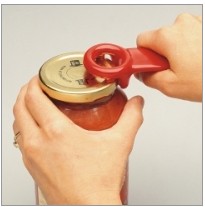 There is another lever type device which I have not tried but which sounds very interesting. It's purpose is not to actually open the jar but to break the vaccum which makes the first opening so difficult. My guess is that it would work well for home canning lids, where the seal is a separate piece than the ring, and for jars such as the one pictured, where the lid is held on by 4 or 5 projections that insert into the spiral on the glass rather than lids with a continuous spiral connection to the jar.
Automatic Openers
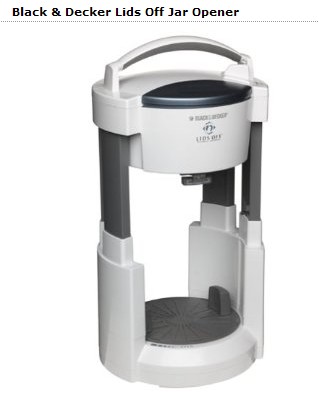 The final type of opener to consider is the Automatic Opener. These come in various designs but most work in essentially the same manner. You take the jar, place it in the device, push a button, and it opens the jar. Truly a great invention for those that need it.
You will need to examine the jar opener or read the specifications to determine if it will fit your needs. These will only work with jars of specific heights (i.e. no taller than so many inches, no wider than so much diameter).
Also, if you don't really need it consider your counter space. Do you have room to keep it out all the time? If not, will you REALLY pull it out frequently enough to justify the cost? If so, it may be a good investment. If not, you may wish to try one of the less expensive alternatives.
©2011 by vjhixson all rights reserved
This site needs an editor - click to learn more!

Related Articles
Editor's Picks Articles
Top Ten Articles
Previous Features
Site Map
Content copyright © 2023 by virginia hixson. All rights reserved.
This content was written by virginia hixson. If you wish to use this content in any manner, you need written permission. Contact
BellaOnline Administration
for details.
